![]() |
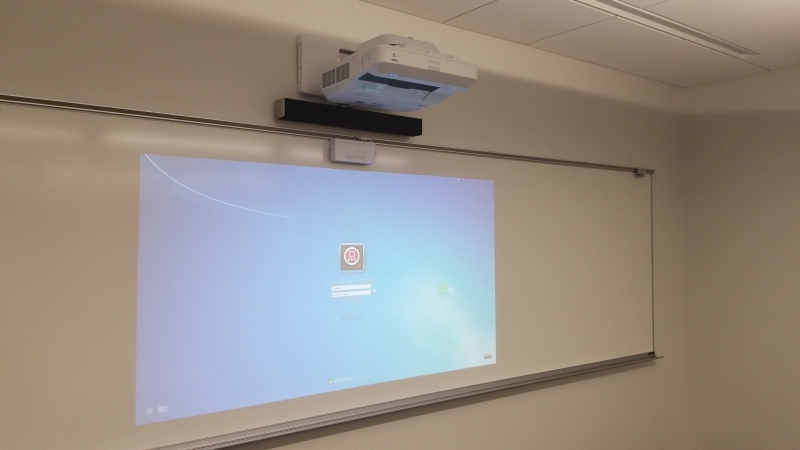
These projectors, in conjunction with a non reflective whiteboard, allow the instructor to control the computer by touching the projected image with an electronic pen. Users can also write or draw on the board, and save these annotations for reference at a later time. Follow this link for instructions on the Epson interactive feature of these projectors. For instructions on how to use Smartboard Notebook software on these projectors, see the Smartboard Instruction page.
|
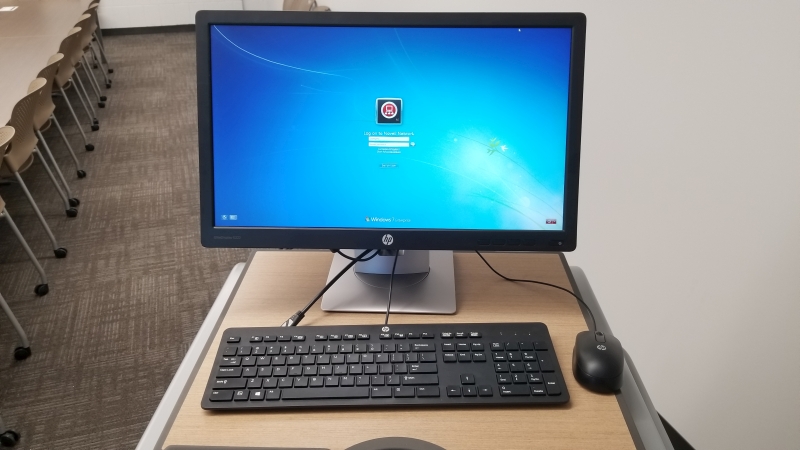
| Step 1 | Turn on and log into the computer using your college login and password. | ![]() |
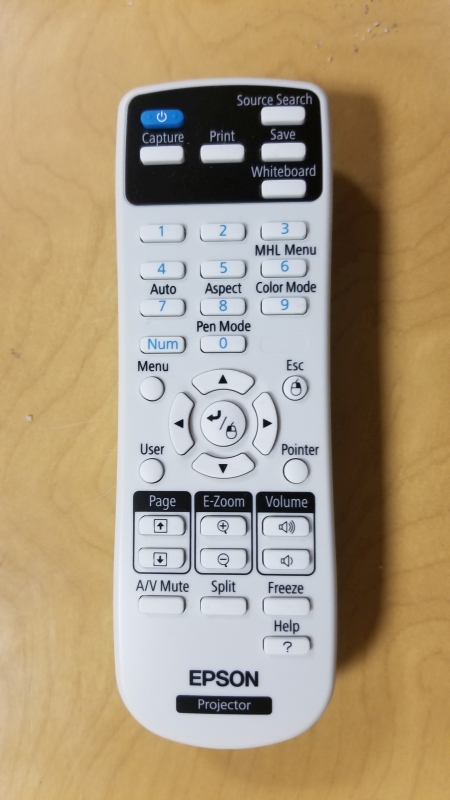
| Step 2 | Turn on the Epson projector. Press the blue "Power" button on the Epson remote control. |
![]() |
| Connecting a Laptop Computer |
||
| It is easy to connect a laptop computer to the projection equipment in the classrooms. Turn on the projector (follow steps 1, 2 above), then continue with the steps below: |
||
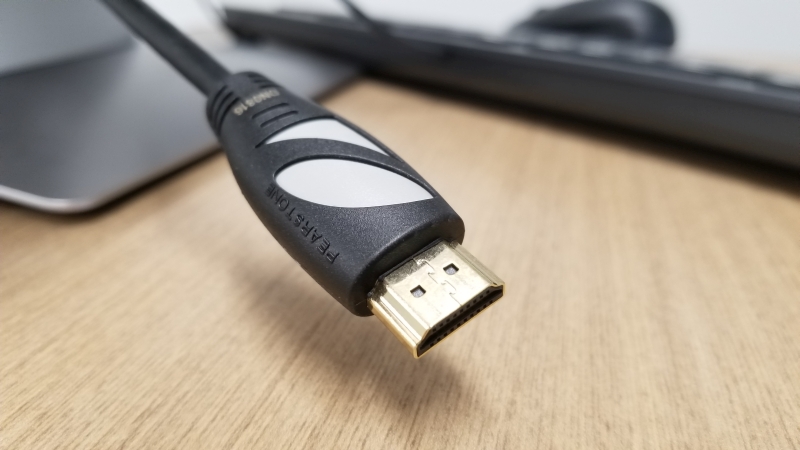
| Step A | Locate the loose HDMI cable on the top of the equipment cabinet. | ![]() |
| Step B | Plug the HDMI cable into the HDMI port on the laptop computer. Depending upon the type of computer you have, an adapter may be needed to convert the computer output to HDMI. |
|
Step C
|
The projector will automatically detect a new device, and display the laptop onto the projector. |
|
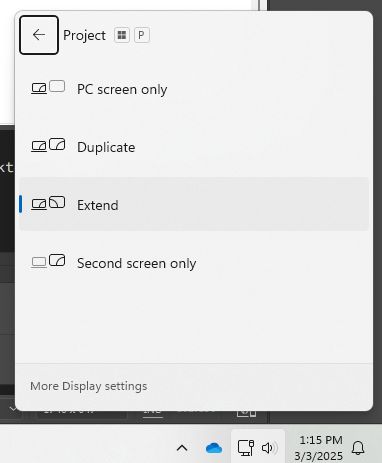
| Hint | If the laptop computer is turned on and connected properly, and steps A and B have been followed, yet the image is not seen on the data projector, use the laptop computer's display toggle feature. These steps vary from manufacturer, but generally the external display port can be turned changed by holding down the Windows key, and pressing "P" Then, select "Duplicate" from the menu that appears. For Mac computers, open the display settings and make certain "Mirror Displays" is checked. |
![]() |
| Power Down |
||
| Step a | When finished, press the blue power button on the Epson remote control, pause a second, then press it again a second time. The first press will bring up a dialog asking if you wish to turn off the projector. The second press will agree and turn off the projector. |
![]() |
| Step b | Log off the computer. Logging off will keep the computer powered up and ready for the next user to log in. | |
| Revised 03-25 Send comments about this page to Tom Gill,Audio Visual Technology Coordinator tmgill@noctrl.edu |